# Block Slider

Block Slider is the Next Generation WordPress Slider Plugin. It uses the WordPress block editor Gutenberg as the slider editor, thus you take the full potential of WordPress blocks as slide content.

It’s is lightning fast and easy to use. It’s not just another WordPress slider plugin — it’s a new way to build beautiful, responsive slideshows. You get all the features you need to create stunning slideshows, without a clunky slider builder.

It works with the most popular page builders. You can use it anywhere using **shortcodes**.


# Configuration

Block slider is highly configurable. Learn more about configuring block slider according to your specific needs.


# Keyboard Navigation

In order to provide a better user experience sometimes, you need more than regular navigations. Keyboard Navigation allows you to navigate between slides via keyboard.

## How to use it?

You can enable keyboard navigation in the block slider with this toggle setting.

<figure><img src="/files/Qd2gAjfySqOXTVqkjPrv" alt=""><figcaption><p>where to find keyboard navigation</p></figcaption></figure>


# Mouse Drag

Mouse drag allows the user to switch slides by dragging the slider.

### Where to find it?

Just like every other slider setting, “mouse drag” can also be found under “slider settings”.

<figure><img src="/files/Wo29jgO2F7X4bZL1jZ0U" alt=""><figcaption><p>mouse drag feature</p></figcaption></figure>

### How to use it?

Here’s a quick demo demonstrating how you can easily switch mouse drag in the block slider.

{% hint style="info" %}
“**Mouse drag**” won’t have any visual representation in the Gutenberg editor.
{% endhint %}

{% embed url="<https://share.getcloudapp.com/DOuK0420?collection_id=nlfk6Dv>" %}
how to use enable mouse drag?
{% endembed %}

### Mouse drag in action

Here's a quick video showcasing what mouse drag do on frontend.

{% embed url="<https://share.getcloudapp.com/qGu6m7E4?collection_id=nlfk6Dv>" %}
what mouse drag actually do?
{% endembed %}

<br>


# Speed

Speed allows you to adjust the duration a slide effect takes to switch between slides.

### Where to find?

You can easily find “Speed” setting under slider settings.

<figure><img src="/files/tdc25cNmDCu9NgSqidLf" alt=""><figcaption><p>where to find "speed"?</p></figcaption></figure>

### How to use?

Here’s a quick demo demonstrating how you can adjust speed.

{% hint style="info" %}
Speed won’t have any visual representation in the gutenberg editor.
{% endhint %}

{% embed url="<https://share.getcloudapp.com/12ukngPL>" %}
where to find "speed"?
{% endembed %}

## Speed In Action

{% embed url="<https://share.getcloudapp.com/Bluz8odr?collection_id=nlfk6Dv>" %}
"speed" in action
{% endembed %}


# Slide Effect

Slide effects are the most basic requirement in any good WordPress slider plugin.

Currently, block slider offers 2 slide effects:

* Slide
* Fade

### Where to find it?

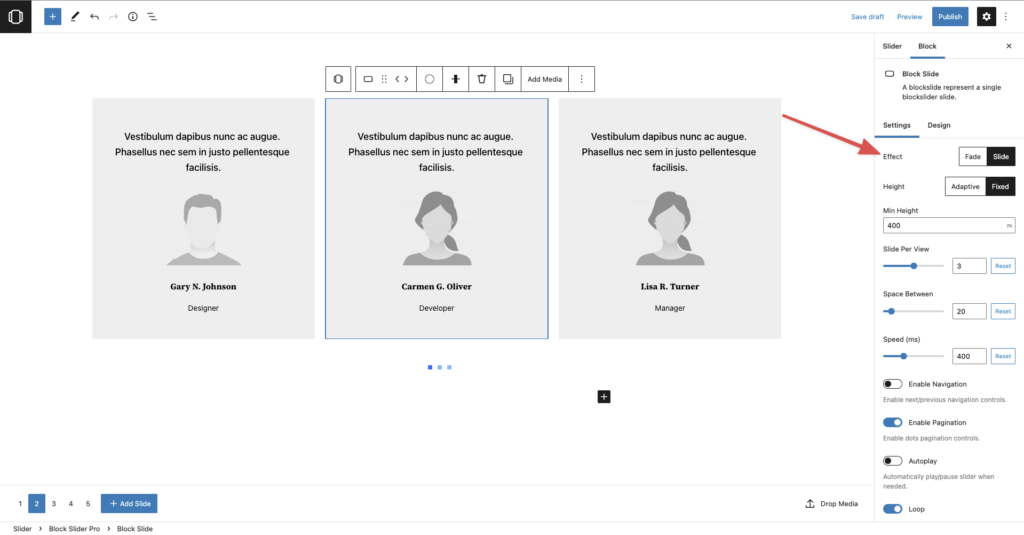
The animation effect can be found at the very beginning of slider settings.

<figure><img src="/files/LMiI5tx4qtuPJxOirTUl" alt=""><figcaption></figcaption></figure>

### How to use it?

You can easily switch between animation effects like so:

{% embed url="<https://share.getcloudapp.com/Qwuwmd4D?collection_id=nlfk6Dv>" %}

{% hint style="info" %}
You can not use fade effects on multiple slides per view.
{% endhint %}

### Slide Effects in action

{% embed url="<https://share.getcloudapp.com/04uvXWQk?collection_id=nlfk6Dv>" %}


# Slide Per View

Usually, when using a WordPress Slider, You may want to have more than a single slide in a slider, In order to create a carousel, Every good WordPress Slider Plugin offers a way to create a carousel in their own environment.

### Where to find?

The “slide per view” option can be easily found under “slider settings”.

<figure><img src="/files/Xso9Q4zCjTH2B8YeLZ03" alt=""><figcaption></figcaption></figure>

### How to use?

Here’s a quick demo using “slide per view”.

{% embed url="<https://share.getcloudapp.com/L1uvj95g?collection_id=nlfk6Dv>" %}

### Related Settings

Here are some documentation for additional related configuration that may go with “slide per view”

* Space between


# Space Between

When creating a WordPress Carousel slider, “Space between” plays a crucial role to properly structure your WordPress Carousel slider.

### How to use?

Here’s a quick demo using “space between” in action.

{% embed url="<https://share.getcloudapp.com/o0uJwG50?collection_id=nlfk6Dv>" %}

## Where to find?

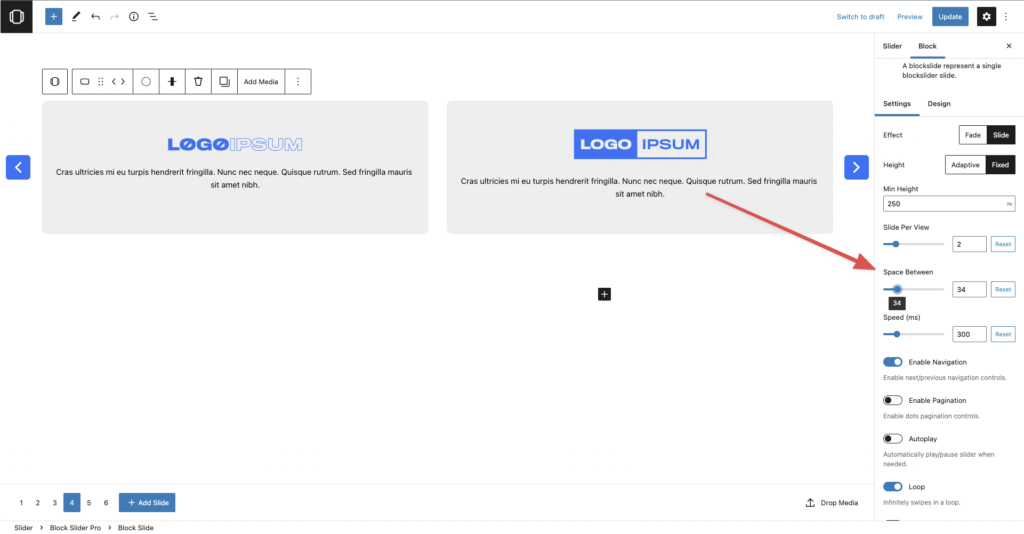
Space between can be easily found under “slider settings”.

<figure><img src="/files/pA2VGIBjGaSGgh6IUMuB" alt=""><figcaption></figcaption></figure>


# Loop

“Loop” allows you to create an infinitely looped slider.

### Where to find?

“Loop” can be found under slider settings.

<figure><img src="/files/DKCTSNeToJ7LjNj6X6lw" alt=""><figcaption><p>where to find loop?</p></figcaption></figure>

### How to use?

Here’s a quick demo demonstrating how you can easily switch “loop”.

{% hint style="info" %}
“Loop” won’t have any visual representation in the gutenberg editor.
{% endhint %}

{% embed url="<https://share.getcloudapp.com/bLuZnKPZ?collection_id=nlfk6Dv>" %}


# Autoplay

Autoplay allows you to automatically switch between different slides with a fixed time interval without any user interaction.

### Compatibility with Gutenberg

Block slider is created using just the Core Gutenberg API, without bloating with any other unnecessary libraries/tweaks.

Therefore, Block slider autoplay is completely compatible with Gutenberg core video block, which means you can easily add videos in a slider and it will be automatically played/paused when the user is interacting with the particular video slide.

### How to use?

Here’s a quick demo showing how autoplay can be used.

{% embed url="<https://share.getcloudapp.com/jkuRwvxR?collection_id=nlfk6Dv>" %}

### Where to find?

Autoplay can be easily found under “Slider Settings”

<figure><img src="/files/vUp2tcMTIjw8zGGGk8Eo" alt=""><figcaption></figcaption></figure>


# Pagination

Pagination can be considered as a core need for any WordPress Slider. Like every other good WordPress Slider Plugin, block slider offers pagination along with variety of other design options to satisfy all design needs.

### How to use?

Here’s a quick demo showing how to use block slider pagination.

{% embed url="<https://share.getcloudapp.com/8LuYO0dE?collection_id=nlfk6Dv>" %}

### Where to find?

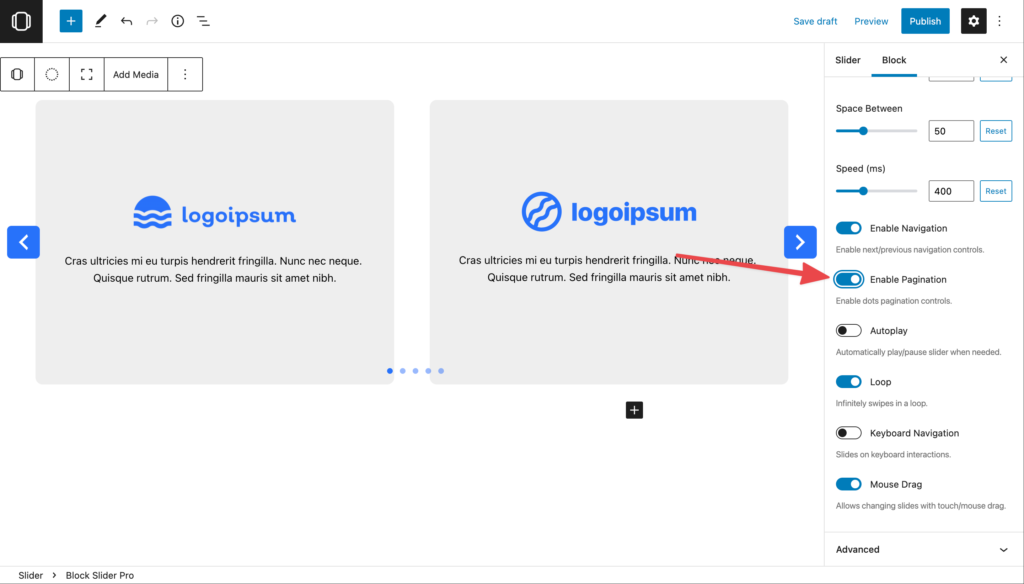
You can find pagination under “slider settings”.

<figure><img src="/files/9pQ20VfszltS7yhQzO9V" alt=""><figcaption></figcaption></figure>


# Navigation

Navigation can be considered an essential need for basically all sliders. Block slider offers navigation along with various customization and design options.

### Where to find it?

You can find navigation under “slider settings” in the block slider.

<figure><img src="/files/FwsFSd1lNAiyPkihmdA0" alt=""><figcaption></figcaption></figure>

### How to use?

Here’s a quick demo showing how to toggle navigation in the block slider.

{% embed url="<https://share.getcloudapp.com/nOuLZXrm?collection_id=nlfk6Dv>" %}


# Guides

This section contains helpful starter guides for block slider.


# Design

Blockslider offers a bunch of designing/customization controls. This documentation covers how you can start customizing block sliders according to your design needs.

### Responsive Design

Almost all design controls support responsiveness. Here’s a quick article explaining how you can use a responsive control

[Using a responsive control](https://wpblockslider.com/docs/using-a-responsive-control/)

## Design Elements

<figure><img src="/files/gRwEgRvHz3AQgm8Hjm9V" alt=""><figcaption></figcaption></figure>

Almost all design options are organized into three basic elements, that are:

* **Wrapper**: Applies on the main slider wrapper/container
* **Slides**: Applies on every slide
* **Current**: Applies on the currently active slide

You can design every other design element regardless you’re on a slide or slider.


# Using a responsive control

Responsive design is a crucial thing for web development. Responsive design ensures that your site looks good on all devices (slider in our case) with different screen sizes and resolutions. This can be a painful process to do manually, but block slider offers responsive support for a variety of its slider options, so you are able to make your site look perfect on any device.

### How to use it?

Let’s suppose you’ve created this carousel (see below)

<figure><img src="/files/KJ9Woa8bX95iXaLoojrm" alt=""><figcaption></figcaption></figure>

It may look good initially, but it’s missing the most important part. You’ve guessed it right ????, It’s missing responsive. Here’s how it looks currently on different devices:

{% embed url="<https://share.getcloudapp.com/KouEbn16?collection_id=nlfk6Dv>" %}

Now that we’ve understood the issue, Let’s take a look at how this can be fixed. We can easily adjust responsive supported controls by switching to the desired device preview (via native Gutenberg).

{% embed url="<https://share.getcloudapp.com/geuPNOPv?collection_id=nlfk6Dv>" %}

## How to know if a control supports responsiveness?

Not all block slider controls support responsiveness, The unsupported responsive controls will have a light opacity (when you are in tablet or mobile view), indicating that it’s currently disabled/unsupported.

{% embed url="<https://share.getcloudapp.com/Z4uGXmNK?collection_id=nlfk6Dv>" %}

## **Quick tip**

You can find an active responsive indication in the top toolbar.

<figure><img src="/files/BEHpxyxykvWNDdrsQG9k" alt=""><figcaption></figcaption></figure>


# Using the visibility control

Controlling block visibility is an important aspect when creating responsive designs. Block slider offers its own visibility control that lets you manage the block visibility on different screen sizes

{% hint style="info" %}
“Visibility” won’t have any visual representation in the Gutenberg editor.
{% endhint %}

## How to use it?

Let’s suppose you’ve created a slider and wanna hide the pagination block on mobile.

{% embed url="<https://share.getcloudapp.com/6quJgNLZ?collection_id=nlfk6Dv>" %}

As you can see the visibility control currently contains 3 visibility options:

* **Hide on desktop:** This allows you to hide the desired block on desktop devices
* **Hide on tablet:** This allows you to hide the desired block on tablet devices
* **Hide on mobile:** This allows you to hide the desired block on mobile devices

## How does It work at the front end?

{% embed url="<https://share.getcloudapp.com/X6u7P5d5?collection_id=nlfk6Dv>" %}


# Using block slider presets

We have a collection of ready-made designs for block slider blocks called presets. We have a bunch of pre-configured presets that are ready to use. The best thing about the presets is that they save tons of time. Here are some presets in the block slider pagination block.

<figure><img src="/files/aFLc9OSHDWhNaOHDQekQ" alt=""><figcaption></figcaption></figure>

We can apply preset by clicking the buttons inside the Presets panel. You can browse the available presets to find the one that fits your design needs.

{% embed url="<https://share.getcloudapp.com/nOuLZ1gK?collection_id=nlfk6Dv>" %}

When you’ve selected your desired preset, There will be a conformational notice indicating that the preset is successfully applied.

<figure><img src="/files/VMPrq2fEGNzhMMv5xgFI" alt=""><figcaption></figcaption></figure>


# Block slider with page builders

A page builder is basically a WordPress plugin or theme component that allows users to build responsive pages directly using them. Many sites are created using page builders other than gutenberg, Therefore, Some users may want to integrate the slider in their page builder.

### How to copy block slider shortcode?

There are two ways to copy the shortcode of an existing block slider.

* **Slider Post Type**: Block slider post type table contains a shortcode field, You can use this field to copy the shortcode.

<figure><img src="/files/d2yT8SXT6jazN0Ol67OQ" alt=""><figcaption></figcaption></figure>

* **Frontend Preview**: When previewing block slider, You can copy the shortcode from the toolbar above.

{% embed url="<https://share.getcloudapp.com/DOuK0rE0?collection_id=nlfk6Dv>" %}

Currently, Blockslider supports these page builders:

* Divi
* Elementor
* Beaver
* Visual Composer

Lets see how we can integrate block slider in each of the page builders listed above.

### 1. Divi

Divi builder is a great tool for streamlining your web design process and improving team collaboration.

## How to insert a block slider in Divi builder?

For inserting block slider in divi, Simply paste the block slider shortcode in divi text module.

{% embed url="<https://share.getcloudapp.com/X6u7PQy7?collection_id=nlfk6Dv>" %}

## 2. Elementor

Elementor is a drag-drop website editor with a wide range of powerful features. elementor is available as a plugin for WordPress that allows you to edit your whole website or individual pages by adding and manipulating all kinds of content like text, images, videos, contact forms, maps, sliders, and more.

### How to insert a slider in Elementor builder?

For inserting block slider in elementor, drag and drop the shortcode widget and paste the block slider shortcode.

{% embed url="<https://share.getcloudapp.com/mXuGL2L4?collection_id=nlfk6Dv>" %}

## 3. Beaver Builder

Beaver Builder is an intuitive WordPress website builder works in real-time on the front end of your page.

### How to insert a slider in Beaver builder?

For inserting block slider in the Beaver Builder, launch beaver builder and drag and drop the text editor widget. Paste the shortcode in the text settings.

{% embed url="<https://share.getcloudapp.com/qGu6mx2k?collection_id=nlfk6Dv>" %}

## 4. Visual Composer

Visual Composer is the most modern WordPress page builder on the market. You will work with cutting-edge technologies, like ReactJS to create robust solutions with outstanding performance.

### How to insert a slider in Visual composer?

For inserting block slider in the visual composer, use the shortcode widget. Paste the shortcode in the element settings.

{% embed url="<https://share.getcloudapp.com/JrueJ8K0?collection_id=nlfk6Dv>" %}


# How to use Query Slider

This guide covers how you can create stunning product/post slider using block slider query feature.

You can create hassle-free product/post slider in a matter of mins with the block slider plugin.

## Where to find?

You can enable the query mode from the starting placeholder in the block slider:

<figure><img src="/files/gxLSeB2aWZhVnmHAo0cD" alt=""><figcaption><p>where to find "query" mode.</p></figcaption></figure>

Once you've enabled the query mode. You can now see an additional option panel under "**Slider Settings**" named as "**Query**".&#x20;

This is you can configure the query to fetch posts relevant to your needs.

<figure><img src="/files/mdrEuBF1sG7rnYtAnd7s" alt=""><figcaption><p>additional query panel</p></figcaption></figure>

{% hint style="info" %}
The query panel only appears if you've entered the query mode as explained above.
{% endhint %}

## Configuring Query

The query panel contains bunch of options that allows you to configure the query as per your specific need.&#x20;

Let's go through each of them in detail:

### 1. Inherit query from template

<div align="left"><figure><img src="/files/abUVbEfawKZ94YXLVSYb" alt="" width="279"><figcaption><p>inherit query toggle</p></figcaption></figure></div>

This powerful toggle allows you to inherit the global wordpress query from the template where the slider is inserted.

Inheriting global query is very powerful, and can help you achieve creating complex sliders for the following use cases:

* **Archive Slider:** You can insert the slider (with inherited query) on an archive page and it'll automatically iterate through the archive posts of that particular category/taxonomy.
* **Results Slider:** You can insert the slider (with inherited query) on search result page and it'll automatically iterate through the search result posts of that particular searched term.

### Post type

<div align="left"><figure><img src="/files/ziMVTuTAPemM9T0AT7S8" alt="" width="279"><figcaption><p>post type control</p></figcaption></figure></div>

WordPress contains different types of content and they are divided into collections called “Post types”. By default there are a few different ones such as blog posts and pages, but plugins could add more.&#x20;

You can select the post type from which posts you need to display in the query slider.

{% hint style="info" %}
if you're creating a product slider with **WooCommerce**. You need to use the "product" post type in order to fetch particular products.
{% endhint %}

### Max items

<div align="left"><figure><img src="/files/4t98CDvAGP2LnMIbqvhv" alt="" width="279"><figcaption><p>max items control</p></figcaption></figure></div>

As the name suggests, max items control allows you to basically control the maxiumum amount of posts the query slider can fetch.

### Order by

<div align="left"><figure><img src="/files/WgTpJjBuLqndCIBczmfl" alt="" width="279"><figcaption><p>order by control</p></figcaption></figure></div>

Order by control allows you to control the fetched posts order. You can choose order from the following list

1. **Newest to oldest**: Orders post from the newest to oldest date.
2. **Oldest to newest:** Orders post from the oldest to newest date.
3. **A -> Z:** Orders post in alphabetical order based on their title from "A" to "Z"
4. **Z -> A:** Orders post in alphabetical order based on their title from "Z" to "A

### Sticky posts

<div align="left"><figure><img src="/files/KpmELo0an8jLyGf6zMoa" alt="" width="279"><figcaption><p>sticky posts control</p></figcaption></figure></div>

WordPress allows you to stick a post so that it always appears on front (first) when posts are queried.&#x20;

Using this control you can control the sticky posts behaviour in the query slider:

1. **Include:** Includes the sticky posts so that they appear on top (first) when posts are queried.
2. **Exclude:** Excludes the sticky posts from the query slider
3. **Only:** Only fetches the posts that are sticky and matches the other query criteria. Selecting this option will exclude every other post that is not sticky from the query slider.

## Filtering

Aside from the basic query modification controls above. Block slider also allows you to filter the queried posts.&#x20;

Allowing you to basically narrow down further to match your content needs.

### Search Items

<div align="left"><figure><img src="/files/RgaDGrzSdTA2zVdFCXxi" alt="" width="265"><figcaption><p>search filter control</p></figcaption></figure></div>

You can specifically search through the queried posts based on search keyword. Adding a search term here searches through the "content" and "title" of the post.

### Taxonomy filters

<div align="left"><figure><img src="/files/LGP7h9OXRXf2jJL8hmql" alt="" width="265"><figcaption><p>taxonomy filter controls</p></figcaption></figure></div>

Taxonomy filters allows you to basically narrow down the queried posts based on the taxonomy terms.

{% hint style="info" %}
Taxonomy filters changes based on the allowed taxonomy and the selected post type.
{% endhint %}

### Author Filter Control

<div align="left"><figure><img src="/files/XaN1r21uiB2rSgc7MZkX" alt="" width="265"><figcaption><p>author filter control</p></figcaption></figure></div>

You can also filter the queried posts based on the post author.

## Extending the Query Slider

You can also further extend the query slider if you have any specific needs with the help of the following filter

{% content-ref url="/pages/Gm8WXeKL1sq6VPwlLmpJ" %}
[blockslider\_query\_args](/hooks-and-filters/blockslider_query_args)
{% endcontent-ref %}

## Creating a WooCommerce Product Slider

Learn how you can create a WooCommerce product slider in the following guide.

{% content-ref url="/pages/iFw3CjloPXiru9IbsKKh" %}
[How to create WooCommerce Product Slider](/guides/how-to-create-woocommerce-product-slider)
{% endcontent-ref %}


# How to create WooCommerce Product Slider

Learn how you can create a WooCommerce product slider using block slider query.

In this guide i'm going to demonstrate how you you can create a product slider with WooCommerce and block slider.

## Setting up WooCommerce

This guide is going to assume that you have **WooCommerce** products setup and ready to create a product slider.

{% hint style="success" %}
If you haven't setup WooCommerce yet. You can read the "[Start with Woocommerce in 5 Steps](https://woocommerce.com/document/start-with-woocommerce-in-5-steps/)".
{% endhint %}

## Block Slider WooCommerce Support

Block slider provides WooCommerce Query support out-of-the-box so you can filter the products based on the stock status or sale status.&#x20;

You can also insert woo commerce blocks directly in the query slider and it'll inherit the current product automatically.

## Setting up a Product Slider

Simply navigate and create a query slider if you haven't already (read the article below to learn how to use a query slider).&#x20;

{% content-ref url="/pages/RL3iYzxswQrV91OUUz46" %}
[How to use Query Slider](/guides/how-to-use-query-slider)
{% endcontent-ref %}

### Step 1: Selecting the post type

Now, Let's set the query post type to "product" created by woocommerce.

<figure><img src="/files/urPJXYmf3opz66oK9gFo" alt=""><figcaption><p>selecting the post type</p></figcaption></figure>

### Step 2: Inserting the blocks

You can now insert woo commerce blocks directly inside the slide to inherit and display the current product details.

<figure><img src="/files/2T6nFNilzTP7u6dnjNp8" alt=""><figcaption><p>inserting woo blocks</p></figcaption></figure>

### Step 3 (Optional): Modify/Tweak WooCommerce Query

When you select the post type "product", Block slider displays an additional panel specifically for WooCommerce providing you more flexibillity to modify/tweak woo commerce related queries.

<figure><img src="/files/MBD9y9AnwTLlVw6iRNhm" alt=""><figcaption><p>woo query controls</p></figcaption></figure>

Let me go through what each control does in the WooCommerce query control

1. **Show Sale Product:** When this is toggled on, block slider will only query the products that are on sale (means the product that has a certain discount).
2. **Stock Status:** You can filter the products based on their stock status using this control.

## Wrapping Up

Creating a product slider is really easy with block slider. You can further customise the product query if you have a more complex query need with the following filter.

{% content-ref url="/pages/Gm8WXeKL1sq6VPwlLmpJ" %}
[blockslider\_query\_args](/hooks-and-filters/blockslider_query_args)
{% endcontent-ref %}


# Hooks and Filters

We're bound to make block slider as extendable as possible. This section contains a list of all available block slider hooks and filters.


# blockslider\_query\_args

"blockslider\_query\_args" filter allows you to modify the block slider query before being processed by the query slider.

## Arguments

| Argument | Type  | Description                                                                                                             |
| -------- | ----- | ----------------------------------------------------------------------------------------------------------------------- |
| `$args`  | array | Array of list of arguments supported by [WP\_Query](https://developer.wordpress.org/reference/classes/wp_query/) class. |
| `$query` | array | Query attribute constructed from the block slider block.                                                                |

## Available Since

version **2.1.4**

## Example

The following code snippet demonstrate a simple use case regarding how developers can change maximum posts a query slider can ever get.

```php
add_filter( 'blockslider_query_args', function( $args, $query ) {
    $args['posts_per_page'] = 20;
    return $args;
}, 10, 2 );
```


# Controller Blocks

The premium version of block slider comes with controller blocks that allows you to place the slider controls anywhere in the layout

These premium block slider controller blocks are simple yet very powerful when used correctly. This section covers a basic introduction to all the available controller blocks and their usage.

### Types of Controller Blocks

Currently, block slider offers the following controller blocks that can be further divided into 2 categories:

1. **Navigation Controller Blocks:**
   1. **Next Control**: When clicked, It moves the slider to the next slide.
   2. **Previous Control:** When clicked, It moves the slider to the previous slide.
   3. **First Control:** When clicked, It moves the slider to the first slide.
   4. **Last Control:** When clicked, It moves the slider to the last slide.
2. **Pagination Controller Blocks:**
   1. **Bullet Control:** Displays a series of bullets (mostly square items) that indicates each slide. When the user clicks on a specific bullet. It will move (slide) the slider to that specific index.
   2. **Number Control:** Similar to the bullet control in terms of functionality, but includes the slide index inside the bullet.
   3. **Upper Alphabets Control:** Similar to the bullet control in terms of functionality, but includes the slide index to the corresponding alphabet in uppercase.
   4. **Lower Alphabets Control:** Similar to the bullet control in terms of functionality, but includes the slide index to the corresponding alphabet in lowercase.
   5. **Upper Roman Control:** Similar to the bullet control in terms of functionality, but includes the slide index in uppercase roman numerals.
   6. **Lower Roman Control:** Similar to the bullet control in terms of functionality, but includes the slide index in lowercase roman numerals.
   7. **Thumbnail Pagination Control&#x20;**<mark style="color:red;">**(New)**</mark>**:** This special controller blocks allows you to create thumbnail pagination in block slider.

You can learn more about the thumbnail controller block here:

{% content-ref url="/pages/rq5cHSysSrbW9hbdGRJD" %}
[Thumbnails Controller Block](/controller-blocks/thumbnails-controller-block)
{% endcontent-ref %}

### Where to find the slider controller blocks?

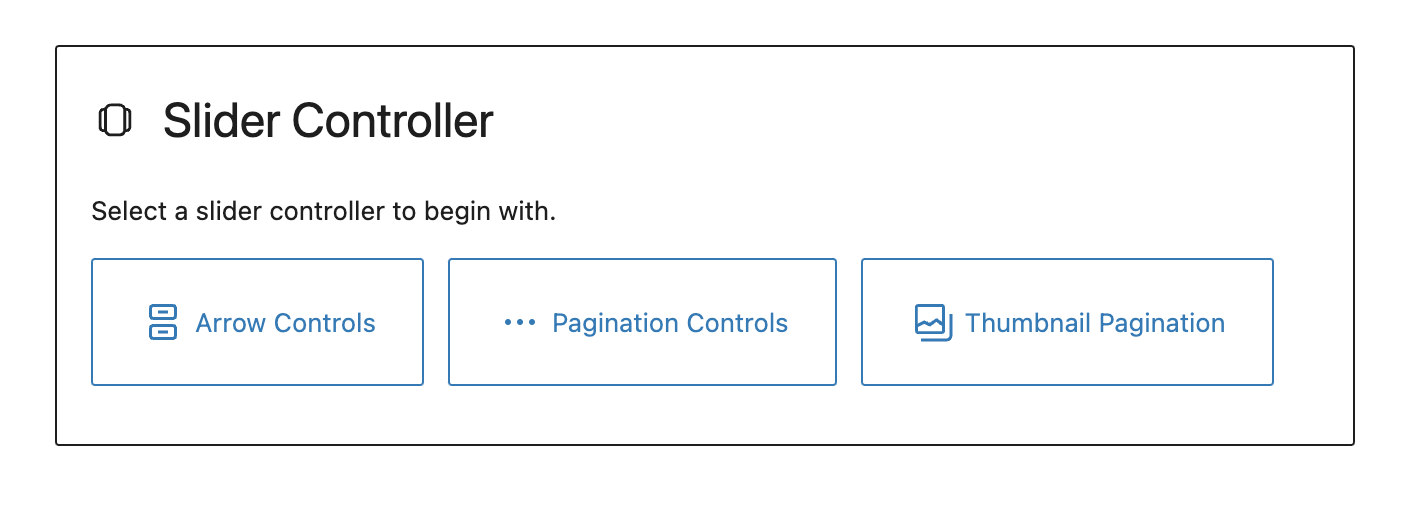
You can insert the slider controller blocks using the "Slider Controller" block in block slider.

1. Search for the "Slider Controller" block in the post.

<figure><img src="/files/wU8jlxD3KdFtpGIuI24b" alt=""><figcaption><p>slider controller block</p></figcaption></figure>

2. Insert and select the desired controller type.

<figure><img src="/files/gNWcYgUUV97rH4M2lmoI" alt=""><figcaption><p>select controller type</p></figcaption></figure>


# Thumbnails Controller Block

Thumbnail controller block allows you to create beautiful looking thumbnail pagination for your block slider.

This guide covers all about the thumbnail controller block and how you can use it to create a stunning thumbnail pagination.

{% hint style="warning" %}
Thumbnail pagination is currently unsupported with the block slider query mode.&#x20;
{% endhint %}

### Initial Thumbnail Pagination

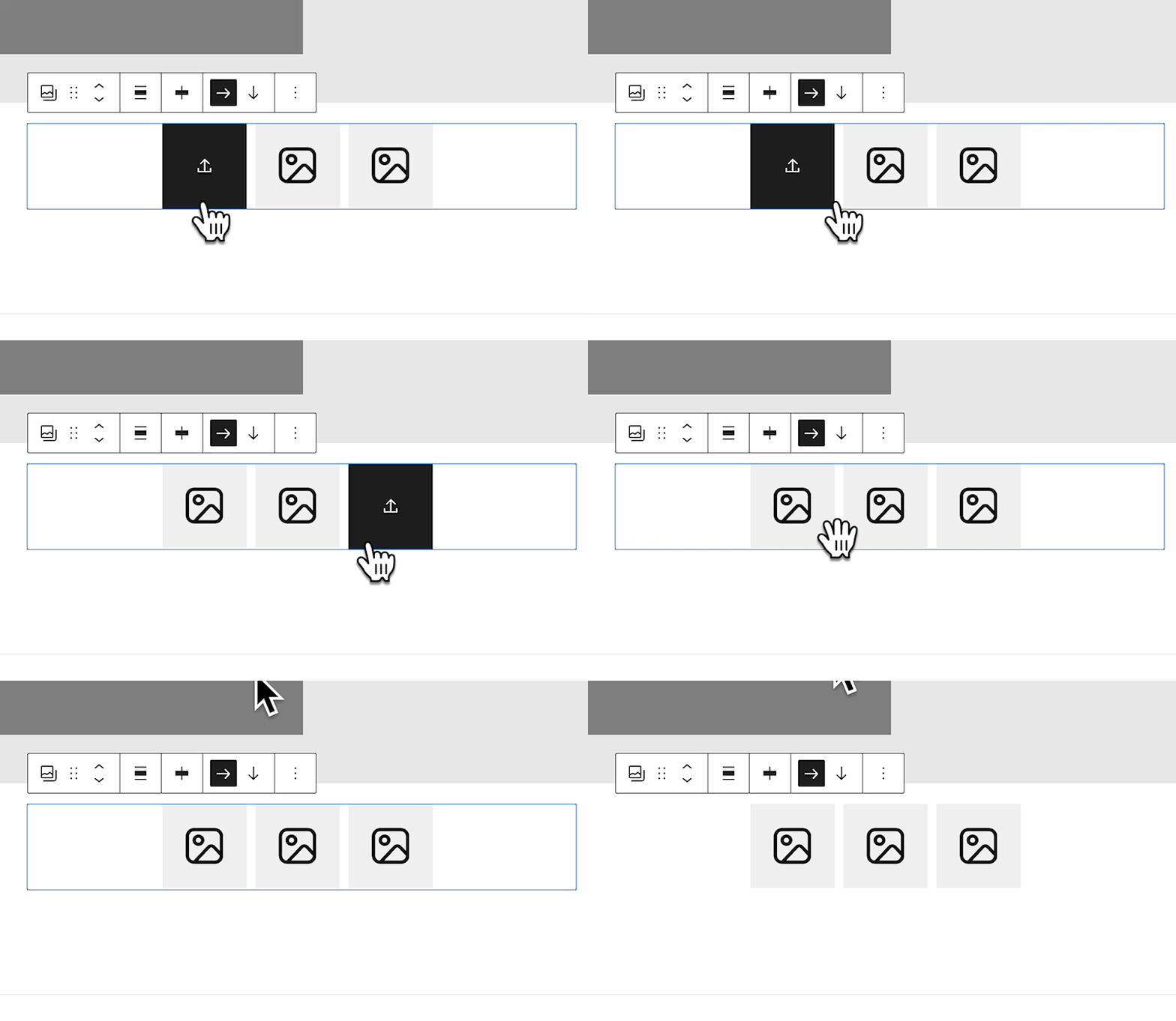
After inserting the thumbnail pagination. You will be presented with some placeholder thumbnails (that is automatically populated based on the slide count of your slider).

<figure><img src="/files/L9bE098MlOte9dkMno50" alt=""><figcaption><p>initial thumbnail pagination</p></figcaption></figure>

### Uploading Thumbnails

You can now insert your desired thumbnail images by clicking on each of the thumbnail items.

<figure><img src="/files/yMuj8o8cmWsxQkIWm580" alt=""><figcaption><p>uploading thumbnails</p></figcaption></figure>